Is your Chevrolet Equinox touchscreen freezing, lagging, or failing to connect to your smartphone? Modern vehicles offer incredible technology, but occasional software hiccups can disrupt your driving experience. Understanding proper infotainment system operation is essential for keeping your Chevy Equinox’s digital hub running smoothly. Whether you are dealing with a minor Bluetooth bug or a completely unresponsive display, learning how to reboot and reset your system will get your media and controls back on track quickly.
How to Perform a Quick Soft Reboot
Before resorting to a full factory reset, a simple system reboot usually solves temporary bugs like audio drops or unresponsive menus without erasing your personal data.
- Park Safely: Bring your vehicle to a complete stop and turn off the engine.
- Open the Driver’s Door: Opening the door cuts residual electrical power to the dashboard and central display.
- Wait a Few Minutes: Keep the vehicle off and the door open for about 2 to 3 minutes to allow the onboard computer to shut down completely.
- Restart the Vehicle: Start your car again. The screen should initiate a fresh boot sequence, resolving minor software glitches.
Pro-tip: On many modern Chevy models, you can also trigger a fast display restart by pressing and holding the "End Call" or "Mute" button on your steering wheel for 10 to 15 seconds until the screen turns black.
Restoring Factory Settings for Deep Fixes
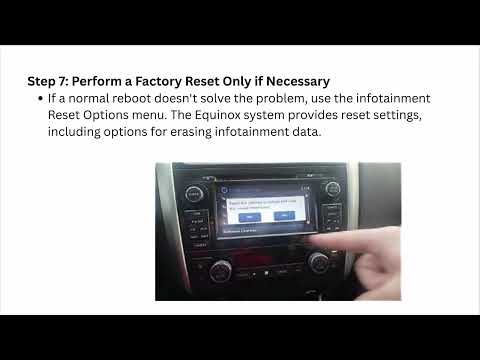
If a quick reboot does not resolve persistent connectivity issues or severe system freezes, restoring the factory settings is your best course of action. This process wipes saved user data, paired Bluetooth devices, and custom settings, returning the system to its original state.
To execute a factory reset: 1. Navigate to the Settings menu on your touchscreen. 2. Scroll down and select System. 3. Tap Reset Options (or Return to Factory Settings). 4. Confirm your selection and allow the system a few minutes to complete the restoration.
Tips for Long-Term System Health
To ensure seamless infotainment system operation moving forward, regularly connect your Equinox to Wi-Fi to download available over-the-air software updates. Keeping your paired smartphone updated to the latest OS version also prevents unnecessary compatibility conflicts with Apple CarPlay or Android Auto.
By mastering these basic troubleshooting steps, you can resolve tech issues independently and enjoy a stress-free drive every time you get behind the wheel.


